
How to Factory Reset Your iPhone: 3 Methods (Complete Guide 2026)
Need to factory reset your iPhone before selling or troubleshooting? Learn 3 proven methods to safely erase everything and start fresh.
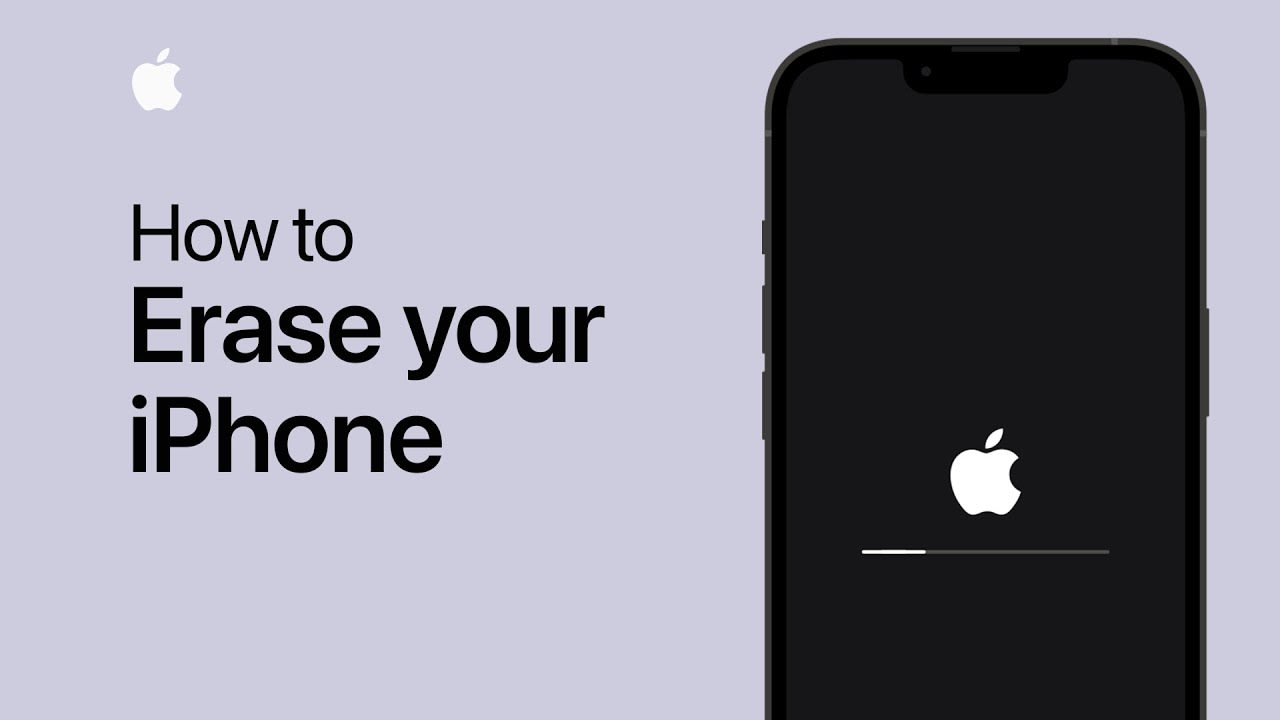
Factory resetting your iPhone erases everything — photos, messages, apps, settings — and returns it to the state it was in when you first unboxed it.
Whether you're selling your device, troubleshooting persistent issues, or just want a fresh start, here's how to factory reset your iPhone safely without losing data you want to keep.
Before You Reset: Critical Backup Steps
Once you factory reset, your data is gone forever. Take these steps first:
Backup to iCloud
Backup to Computer
Export Important Data
- Photos: Use iCloud Photos or export via computer
- Contacts: Settings > [Name] > iCloud > Enable Contacts sync
- Messages: Enable Messages in iCloud
- WhatsApp: Use WhatsApp's built-in backup feature
Method 1: Reset via Settings (Recommended)
This is the cleanest method when your iPhone is working normally:
Your iPhone will restart, erase everything, and show the setup screen. This typically takes 10-30 minutes.
Method 2: Reset via Computer (For Frozen iPhones)
If your iPhone is unresponsive or you forgot your passcode:
On Mac (macOS Catalina or later):
On Windows or older Mac:
This downloads fresh iOS and erases your iPhone. It takes 20-45 minutes depending on internet speed.
Method 3: Reset via Recovery Mode (For Serious Issues)
If your iPhone won't turn on, is stuck in a boot loop, or Method 2 failed:
Enter Recovery Mode:
iPhone 8 and newer:
1. Connect to computer
2. Quick press Volume Up
3. Quick press Volume Down
4. Hold Power button until recovery screen appears
iPhone 7:
1. Connect to computer
2. Hold Volume Down + Power together until recovery screen appears
iPhone 6s and earlier:
1. Connect to computer
2. Hold Home + Power together until recovery screen appears
Restore via Computer:
This is the deepest reset method and fixes most software issues.
After Factory Reset: Setup Your iPhone
Once reset completes, you'll see the "Hello" screen:
Option 1: Restore from Backup
Option 2: Set Up as New iPhone
Use this option if you're troubleshooting persistent software issues — restoring a backup might restore the problem too.
When to Factory Reset Your iPhone
Factory reset is useful for:
- Selling or giving away your iPhone
- Persistent software bugs that won't resolve
- Severe performance issues after trying everything else
- Starting fresh after major iOS updates
- Clearing all personal data before repair
Common Factory Reset Mistakes to Avoid
Not Backing Up First
You cannot recover data after a factory reset. Always backup first unless you genuinely don't care about any data.
Forgetting to Disable Find My
If you sell your iPhone without disabling Find My, the new owner will face Activation Lock and cannot use the device.
Always: Settings > [Name] > Find My > Find My iPhone > Toggle OFF
Not Signing Out of iCloud
The reset process handles this, but if you do it manually:
Settings > [Name] > Sign Out (at bottom)
This removes your Apple ID from the device.
Resetting During Updates
Never factory reset while an iOS update is installing. This can brick your iPhone.
What Gets Deleted vs What Stays
Deleted:
- All photos and videos not backed up to iCloud
- All apps and app data
- All messages and call history
- All saved Wi-Fi passwords
- All custom settings
- All downloaded music/podcasts
Not Deleted (stored in Apple ID):
- iCloud Photos (if enabled)
- Contacts synced to iCloud
- Calendars and reminders
- App Store purchase history
- Apple Pay cards (can re-add)
Troubleshooting Reset Issues
"Erase iPhone" Button is Grayed Out
You need to disable restrictions:
1. Settings > Screen Time > Content & Privacy Restrictions
2. Toggle OFF or enter Screen Time passcode
Reset Gets Stuck
If the process freezes for more than 2 hours:
1. Force restart your iPhone
2. Try Method 2 (reset via computer) instead
"Unable to Activate iPhone"
After reset, you might see this error:
- Check that you're connected to Wi-Fi or cellular
- Wait 24 hours — Apple's activation servers might be busy
- Contact Apple Support if it persists
Alternative: Soft Reset (Doesn't Erase Data)
If you just want to fix minor issues without erasing everything:
Force Restart (Safe, Keeps All Data):
iPhone 8+: Volume Up (quick), Volume Down (quick), hold Power until Apple logo
iPhone 7: Hold Volume Down + Power for 10 seconds
iPhone 6s-: Hold Home + Power for 10 seconds
This clears RAM and restarts iOS without touching your data.
Final Thoughts
Factory resetting your iPhone is straightforward when you follow the right method for your situation. Always backup first, choose the appropriate reset method, and give the process time to complete.
If your iPhone has hardware issues that persist after factory reset, software isn't the problem — you need professional iPhone repair to diagnose physical damage.
Need help with iPhone hardware issues? Get expert diagnosis to identify the real problem.
Need Professional Repair?
Our certified technicians are ready to help. Book your repair service online or visit us at one of our Brisbane locations.
Book a Repair